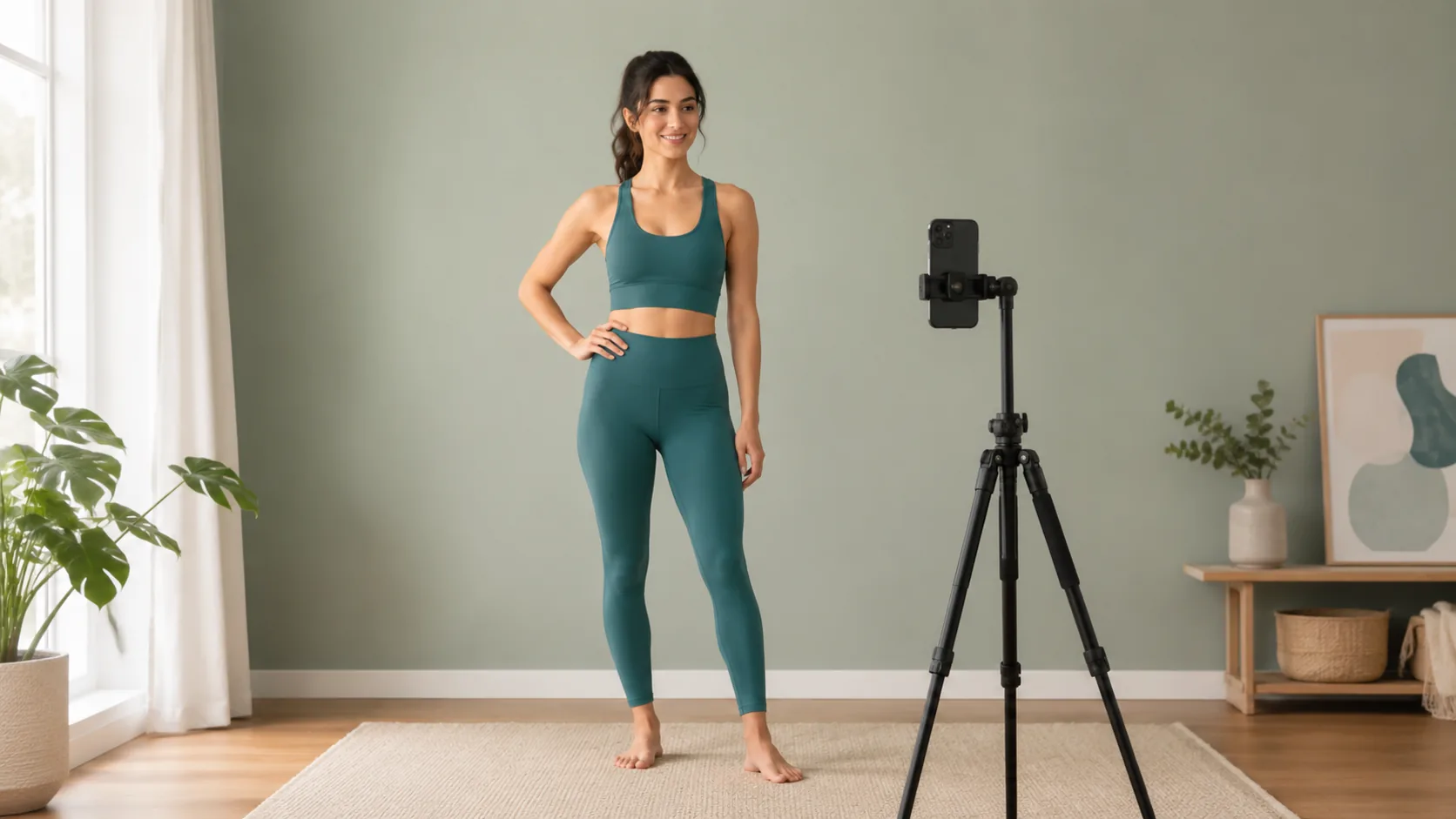
 AI-generated illustration
Choose a clear person photo
Start with a photo that shows one person clearly. A front-facing or gently angled pose, even lighting, and an unobstructed view of the area where the garment belongs usually make the resulting image easier to assess.
- Use a sharp image with the person large enough to see clearly.
- Keep arms, bags, furniture, and other people from covering the relevant body area.
- Prefer natural, even light over strong shadows or colored effects.
- Choose a simple pose instead of an extreme angle or action shot.
Make the garment easy to read
Use an image in which the garment is the obvious subject. A clean product photo with a visible outline helps separate the item from unrelated styling, models, text, and background objects.
- Show one main garment rather than a collage or a full outfit bundle.
- Prefer a front view with the complete item inside the frame.
- Avoid screenshots dominated by buttons, prices, promotional labels, or other interface elements.
- Check that prints, sleeves, hems, and edges are not cropped when those details matter to your decision.
Match the image to the question
Decide what you want to learn before uploading. If you are comparing color, keep the person photo and lighting consistent between garments. If you are comparing an overall silhouette, use garment images with similar framing so the input differences are easier to understand.
FitPreview automatically classifies a garment as a top, bottom, or dress. Images containing several competing items can make that category—and the resulting composition—less clear.
Review privacy before uploading
Only upload a person photo you have the right and permission to use. Look beyond the main subject for badges, documents, screens, addresses, children, or bystanders you did not intend to include.
Cropping unnecessary background can reduce the personal information in the file. For details about storage, providers, saved history, and deletion controls, read the current Privacy Policy before you upload.
Judge the preview as a reference
A cleaner input may produce a more readable image, but it does not turn a generated preview into a measurement or fitting tool. Compare the result with the source images, ignore invented details, and verify size and product facts with the seller.